
Failed to Verify Protected Resource (FiveM Escrow Error)
Complete Fix Guide for Server Owners
If you are running a FiveM server and suddenly see the error “Failed to verify protected resource”, you are not alone. This is one of the most common and frustrating escrow related issues faced by server owners using paid or encrypted scripts.
The good news is that this error is almost always fixable, and in most cases, it is not caused by the script itself.
In this guide, I will explain what the error actually means, why it happens, and how to fix it step by step, even if you are not very technical.
What Does “Failed to Verify Protected Resource” Mean?
In FiveM, some scripts are protected using the FiveM Escrow System.
When your server starts, FiveM tries to verify that the resource:
- Is legally purchased
- Is running on an authorized server
- Has not been modified
- Is linked to the correct license key
If any part of this verification fails, FiveM blocks the script and shows the error:
Failed to verify protected resource
This is FiveM protecting the developer’s work, but it can break your server if even one setting is wrong.
Correct Steps to Fix “Failed to Verify Protected Resource” in FiveM
If you are seeing the Failed to verify protected resource error, the fix is usually very simple. In almost all cases, the issue is related to how the script was installed or where it was downloaded from, not the script itself.
Follow the steps below carefully and do not skip any step.
Step 1: Re-download the Script From the Official Portal
Always download the script again from the same portal or store where you originally purchased it.
Important points:
- Use the same account you bought the script with
- Do not use files shared by someone else
- Do not reuse old backups
If the script is not present in your portal account, escrow verification will fail.
Step 2: Fully Reinstall the Script (Clean Install)
- Stop your server
- Delete the existing resource folder completely
- Upload the freshly downloaded version
- Place it directly inside your resources folder
- Do not rename the resource folder
This ensures FiveM can properly verify the script during startup.
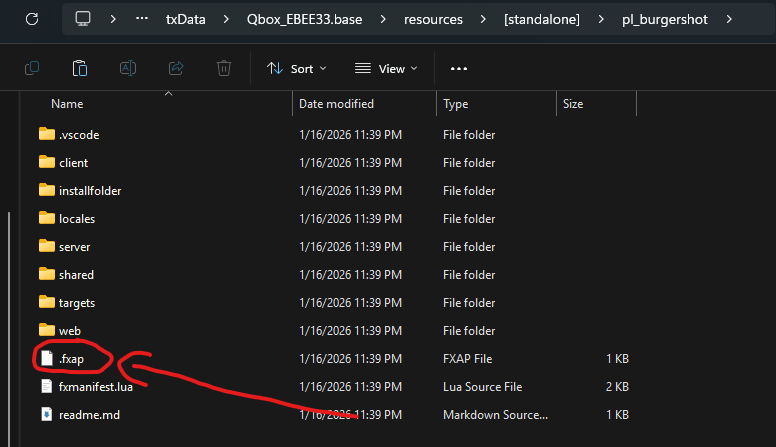
Step 3: Make Sure the .fxap Files Are NOT Deleted
Escrow-protected scripts include .fxap files, which are required for license verification.
Important:
- Do NOT delete .fxap files
- Do NOT move them
- Do NOT block them via antivirus or cleanup tools
If .fxap files are missing, the script will fail verification immediately.
Step 4: Confirm the Script Exists in the Same Portal Account
FiveM escrow checks whether:
- The script exists in your portal account
- The account matches your server license
- The resource has not been tampered with
If you:
- Changed accounts
- Bought the script on a different profile
- Transferred files manually
The verification will fail.
Always run escrow scripts using the same portal account they were purchased on.
Step 5: Restart the Server and Verify
After reinstalling:
- Restart your server
- Watch the console carefully
- Confirm the resource starts without escrow errors
If installed correctly, the error will be gone instantly.
Frequently Asked Questions
Can I bypass or disable escrow verification?+
No. Escrow is enforced by FiveM. Attempting to bypass it violates FiveM and script developer terms and can result in bans.
Does reinstalling the script really fix it?+
Yes. In most cases, a clean re-download with no modifications fixes the issue immediately.
Does this error mean the script is broken?+
No. The script is usually fine. The issue is almost always server configuration, license key, or file changes.